
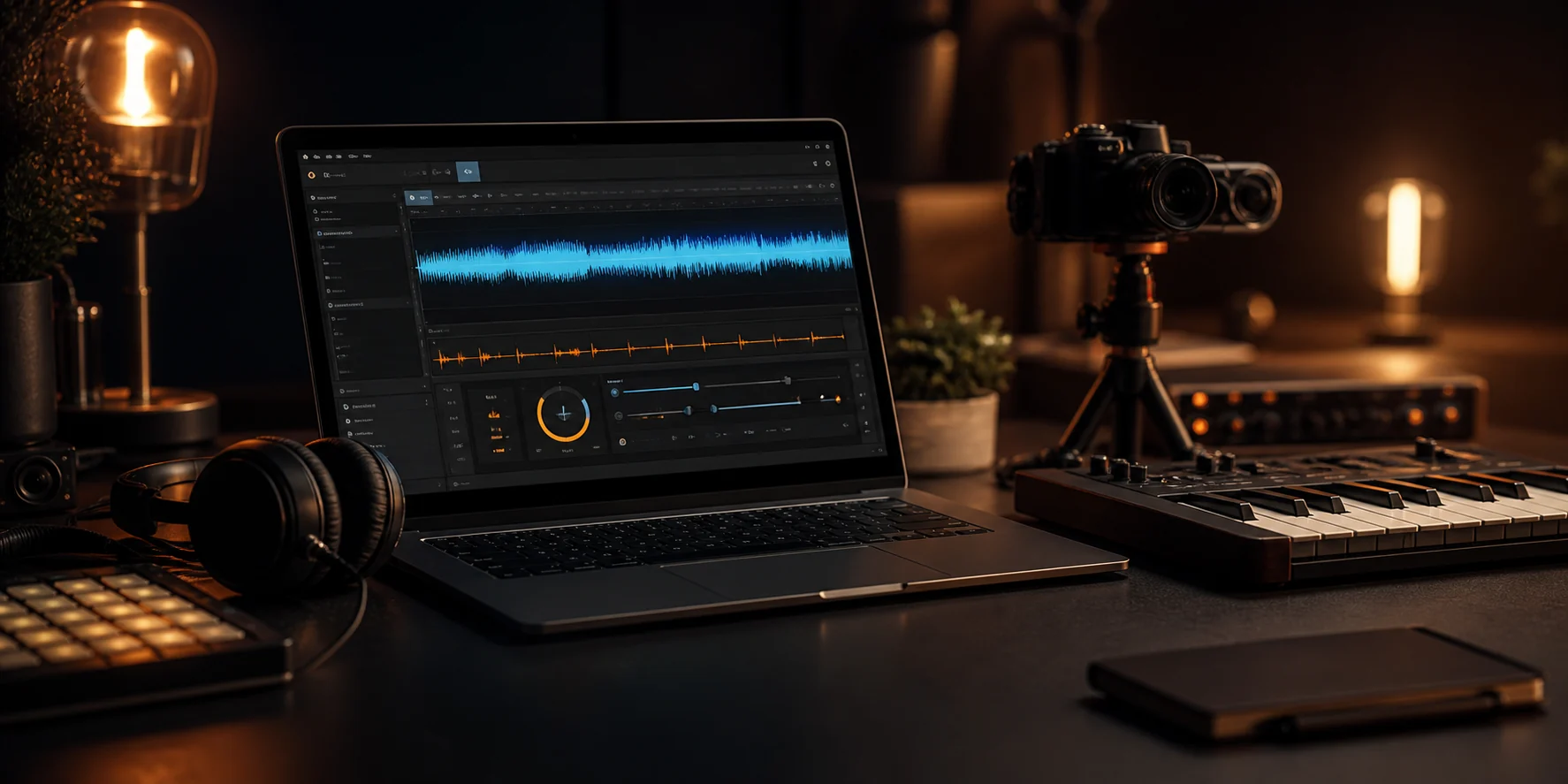
To slow down or speed up a song without changing pitch, use time stretching instead of changing the playback rate. Upload the audio, choose a new speed or target BPM, keep Pitch at 0 semitones, preview the result, and export the version you need.
Slow down or speed up your song with MakeBPM. The tool runs in your browser, lets you control speed and pitch separately, and can export the result as a WAV file.
In audio processing, time-scale modification changes a recording's duration while preserving its perceived pitch as closely as possible. No single method handles every type of music equally well. Drums, vocals, and full mixes create different processing challenges. Driedger and Müller review the methods and tradeoffs in A Review of Time-Scale Modification of Music Signals.
Key Takeaways
Use time stretching to change tempo without the pitch shift caused by changing the playback rate directly.
- Leave Pitch at 0 semitones unless you want to transpose the song.
Calculate speed with Target BPM ÷ Current BPM. Moving from 128 BPM to 96 BPM requires 0.75× speed.
Preview the busiest section. Large changes can blur drums, vocals, and cymbals.
- Make sure you have a lawful basis to edit and use the audio.
Hear What Happens When You Slow Down a Song
The two players below use the same instrumental excerpt. The first plays at its original speed. The second is processed at 0.75× with Pitch set to 0 semitones.
Before
Original tempo
95 BPM reference · 1.00× · 12 seconds
After
Slower tempo
Calculated 71 BPM · 0.75× · Pitch 0 · 16 seconds
The timing follows the formula. A 12-second clip becomes about 16 seconds because 12 ÷ 0.75 = 16. Using 95 BPM as the reference tempo, the calculated result is about 71 BPM because 95 × 0.75 = 71.25.
Listen for three things:
- The beats are spaced farther apart in the slowed version.
- The slowed version does not have the obvious pitch drop caused by a basic playback-rate change.
- The slower version lasts longer even though it uses the same passage.
This is a listening example, not a guarantee that every file will sound the same. Results depend on the source audio, so preview the full track before export.
This is different from slowing a record or tape. A basic playback-rate change slows the waveform and lowers its frequencies at the same time. Pitch-preserving time stretching changes the duration without intentionally shifting the pitch.
How to Slow Down or Speed Up a Song Online
Use the same workflow for music practice, video editing, podcasts, dance routines, DJ preparation, or fitting a track to a target duration.
1. Choose an audio file
Open the Music Speed Changer and select a file. Processing runs in your browser, so your audio stays on your device.
Use an uncompressed PCM WAV source when one is available. A high-quality MP3 also works for practice and everyday edits, but existing compression artifacts may become more noticeable after a large tempo change. Converting an MP3 to WAV first will not restore lost detail.
2. Choose Speed or Target BPM
Use Speed when you already know the ratio you want:
| Setting | Result |
|---|---|
| 0.50× | Half speed; duration doubles |
| 0.75× | 25% slower; duration becomes about 33% longer |
| 1.00× | Original speed and duration |
| 1.25× | 25% faster; duration becomes 20% shorter |
| 1.50× | 50% faster; duration becomes about one-third shorter |
Use Target BPM when timing matters. Enter the current BPM and the BPM you want. The tool calculates the required speed ratio for you. You can set the speed from 0.25× to 2.00×.
If you do not know the current tempo, first find the song's BPM. From the result, you can open Music Speed Changer with the detected BPM already filled in.
3. Keep Pitch at 0 semitones
Pitch controls transposition. Set it to 0 when you want to change tempo without transposing the song.
Use a positive or negative value only when you also want to transpose the song. For example, +2 semitones raises every note by two semitones without changing the selected speed.
If you are not sure which key the track uses, find the song's key before transposing it.
4. Render and preview the result
Render the result and check the vocals, drum hits, cymbals, and sustained notes. If possible, test a short excerpt from the busiest section first. Dense mixes often reveal artifacts that a quiet intro will not.
5. Export the result
Export the WAV when the preview sounds right. Keep the source file and return to it for future edits instead of processing an edited copy again.
How to Match a Target BPM or Duration
There are two useful calculations: one for tempo and one for duration.
Calculate speed from BPM
Use this formula:
Required speed = Target BPM ÷ Current BPMTo change a song from 128 BPM to 96 BPM:
96 ÷ 128 = 0.75×Enter 128 as the current BPM and 96 as the target. MakeBPM will set the required speed to 0.75×. You can open the tool with 128 BPM filled in, then enter the target BPM.
Here are more examples:
| Current BPM | Target BPM | Required speed | What happens |
|---|---|---|---|
| 100 | 120 | 1.20× | The track becomes 20% faster |
| 120 | 90 | 0.75× | The track becomes 25% slower |
| 95 | 71 | About 0.75× | The track matches the example above |
| 140 | 128 | About 0.91× | A smaller slowdown for tempo matching |
The formula assumes a stable tempo. Live performances and tracks with deliberate tempo changes may not have one fixed BPM from start to finish.
Calculate the new duration
Use this formula:
Output duration = Original duration ÷ SpeedA 60-second clip at 0.75× becomes:
60 ÷ 0.75 = 80 secondsA 60-second clip at 1.25× becomes:
60 ÷ 1.25 = 48 secondsThis is useful when music must fit a video, ad, game scene, exercise routine, or podcast segment. Use the calculation as a starting point, then check the musical phrasing. A mathematically correct duration can still end in the middle of a bar or vocal line.
Why Changing Speed Can Change Pitch
Speed, tempo, BPM, pitch, and key describe related but different properties.
| Term | What it describes | What changes when you adjust it |
|---|---|---|
| Speed | How fast the recording plays | Tempo and duration; pitch may also change without correction |
| Tempo | The pace of the music | The spacing between beats and the total duration |
| BPM | Tempo measured in beats per minute | The numerical tempo value |
| Pitch | How high or low a sound is perceived | Notes and voices sound higher or lower |
| Key | The song's tonal center | The tonal center and note names when the song is transposed |
With simple resampling, the whole waveform plays faster or slower. Faster playback raises the frequencies and shortens the recording. Slower playback lowers the frequencies and lengthens it. That is why a sped-up voice can sound thinner and higher, while a slowed voice can sound deeper.
Time stretching changes the spacing and duration of audio events while trying to preserve perceived pitch. Timbre may still change. Tools may use time-domain, frequency-domain, or combined methods. MakeBPM handles the processing automatically, so you do not need to select an algorithm. Keep Pitch at 0 when you do not want to transpose the result.
Audacity documents the same practical difference: its Change Tempo effect changes tempo and duration without changing pitch, while Change Speed and Pitch changes them together. See the official Audacity Change Tempo manual.
Choose the Right Speed for the Job
There is no universal best setting. Choose the smallest change that solves the task, then listen to the result.
| Goal | Practical starting point | What to check |
|---|---|---|
| Learn a difficult solo | 0.75× with Pitch at 0 | Note attacks, bends, timing, and phrasing |
| Hear a very fast passage | 0.50×–0.75× | Artifacts on cymbals, vocals, and reverb |
| Review a podcast faster | 1.25×–1.50× | Speech clarity and listener fatigue |
| Fit music to a video | Calculate from target duration | Bar lines, cuts, transitions, and the ending |
| Match another track's tempo | Calculate from target BPM | Beat alignment and rhythmic feel |
| Create a tape-speed effect | Change speed and pitch together | Whether the pitch movement suits the idea |
For music practice
Slow the passage until you can hear and play it with control. Practice a short phrase, then move back toward the original tempo.
A self-report survey of 256 adult instrumental musicians found that slow practice was used for technical, expressive, and preparatory goals. The study did not test which tempo progression works best. See Slow practice and tempo-management strategies in instrumental music learning.
For video and creator work
A 60-second track at 1.25× lasts 48 seconds, but the chorus or ending may land in the wrong place. For larger changes, trim or extend the arrangement instead of forcing an extreme speed.
For DJ and remix preparation
Calculate the ratio from the current and target BPM, then check the beat grid by ear. BPM estimates can be half or double the tempo you hear, and live performances may drift. Ableton explains how to correct half-time or double-time estimates and map changing tempos with Warp Markers in its guide to tempo and warping. If harmonic compatibility matters, check both tracks with a key detector.
How to Reduce Robotic, Watery, or Blurry Audio
Time stretching reconstructs a recording on a new time scale. Artifacts often become more noticeable as the speed moves farther from 1.00×.
Music contains sustained notes, noise, transients, room sound, and overlapping instruments. These elements do not respond equally well to every algorithm. Apple provides separate Logic Pro algorithms for complex mixes and percussive material. See Apple's Flex Time algorithm guidance.
Use this checklist when the result does not sound right:
| What you hear | Common contributor | What to try |
|---|---|---|
| Robotic or fluttering voice | A speed far from 1.00× or a difficult vocal mix | Move the speed closer to 1.00× and preview again |
| Soft or smeared drum hits | Stretched percussive transients | Use a smaller change or edit the arrangement instead |
| Watery cymbals or metallic reverb | Dense high-frequency content | Start from a cleaner source and make a smaller change |
| Muddy full mix | Overlapping instruments, effects, and room sound | Test a short section and move closer to 1.00× |
| Result sounds worse after another edit | Repeated processing | Return to the original source for each new version |
| Correct duration but awkward ending | The calculation did not account for musical phrasing | Adjust the edit at a bar or section boundary |
Check more than the first few seconds. Test the busiest part of the song and an exposed vocal section. These passages reveal problems that a quiet intro can hide.
What to Check Before You Export
Use this final review:
- The tempo or duration matches the project.
- Pitch is set to 0 semitones if you do not want to transpose the song.
- Vocals and drum hits remain clear.
- The track starts and ends at useful musical points.
- The output does not clip, and you kept the source file.
- You have a lawful basis to edit and use the audio.
Changing speed or pitch does not remove copyright. The composition and sound recording may be protected separately. Make sure you have a lawful basis to edit and use the audio, such as ownership, permission, a license, public-domain status, or an applicable legal exception. Rules vary by jurisdiction. See the U.S. Copyright Office guide, What Musicians Should Know about Copyright.
Frequently Asked Questions
How can I slow down a song without lowering the pitch?
Use a pitch-preserving tempo changer. Select a speed below 1.00×, keep Pitch at 0 semitones, and preview the result before export.
Does slowing down a song change its key?
Basic playback-rate changes lower both speed and pitch. Pitch-preserving time stretching is designed to change the tempo without transposing the song.
How do I change a song from 128 BPM to 96 BPM?
Divide the target BPM by the current BPM: 96 ÷ 128 = 0.75. Set speed to 0.75× and Pitch to 0 semitones.
Why does slowed audio sometimes sound robotic?
Large changes can add artifacts to vocals, drums, cymbals, and reverb. Use a cleaner source, choose a smaller change, and preview the busiest section.
Can I speed up a song without making the voice sound higher?
Yes. Use pitch-preserving time stretching, choose a speed above 1.00×, and keep Pitch at 0 semitones. The voice should stay near its original pitch, but sound quality depends on the source audio.
Is WAV better than MP3 for changing speed?
When both files come from the same master, an uncompressed PCM WAV preserves more detail than a lossy MP3. A high-quality MP3 remains practical for practice, previews, and everyday edits. Converting an MP3 to WAV does not restore detail already lost.
Sources and Further Reading
- Driedger, J., and Müller, M. A Review of Time-Scale Modification of Music Signals, Applied Sciences, 2016.
- Audacity. Change Tempo.
- Apple Support. Flex Time algorithms and parameters in Logic Pro for Mac.
- Allingham, E., and Wöllner, C. Slow practice and tempo-management strategies in instrumental music learning, Psychology of Music, 2022.
- Ableton. Audio Clips, Tempo, and Warping.
- Library of Congress. Recommended Formats Statement: Audio Works.
- U.S. Copyright Office. What Musicians Should Know about Copyright.
Last updated: September 22, 2026.